If you have not installed Stow yet, download it here. Both builds are signed, so it installs and opens like any other app: on a Mac, drag Stow into Applications; on Windows, run the installer. This article picks up at the first launch.
The setup wizard
On first launch a short wizard walks the choices worth making once: disk access on the Mac, how updates work, the offload log, Wrap, and a pointer to phone alerts. Every step can be skipped, "Set up later" is one click, and everything in it lives in Settings afterwards - the wizard never stands between a card in hand and an offload.
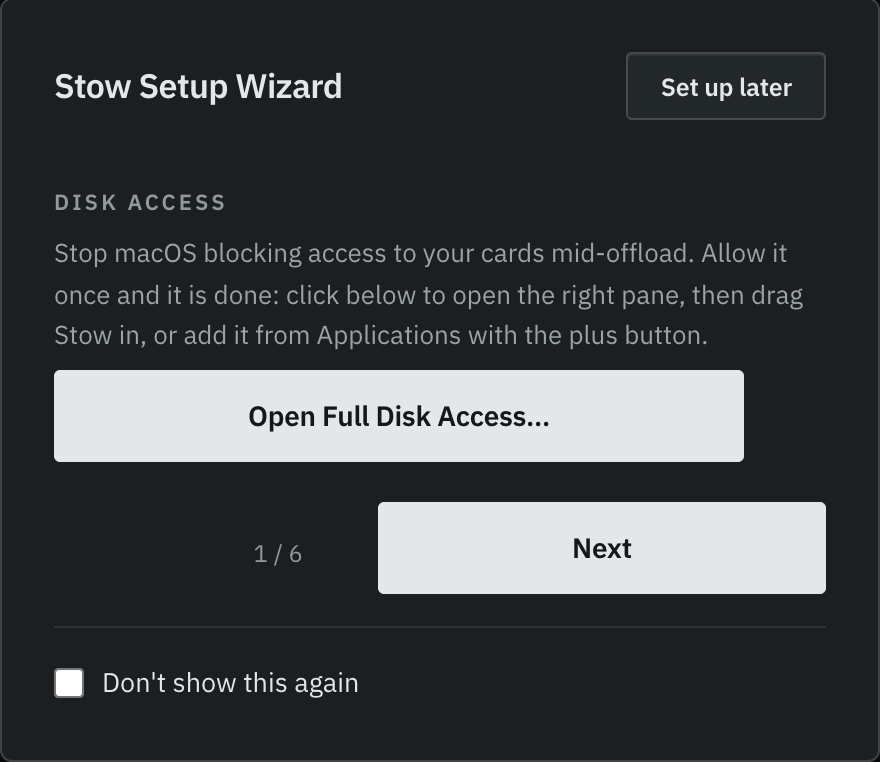
Disk access on the Mac
Stow reads your cards at the disk level - that is how it proves every byte of a copy rather than taking the copy's word for it. macOS calls this Full Disk Access and asks for your say-so once. The wizard's button opens the right Settings pane; drag Stow in, switch it on, and reopen the app. Skip it and Stow will remind you at each launch until it is done, because without it an offload stops mid-flow with "Operation not permitted". Windows needs nothing.
Set up a card
The main screen has two sides. Cards being set up are on the left, the queue is on the right, and everything plugged in is listed underneath.
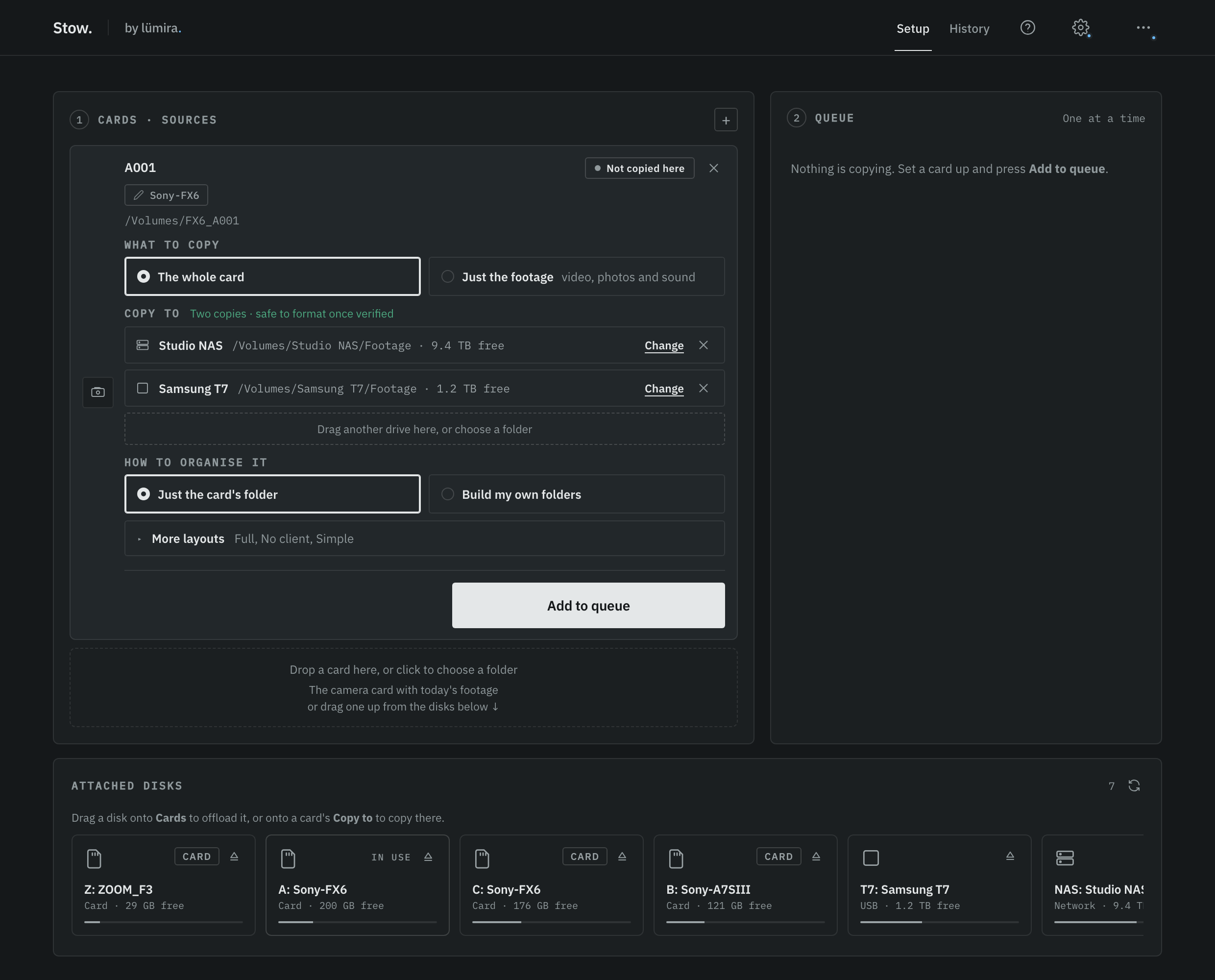
Cards are what you are copying from. Drag one up from the list, or press + to pick a folder. Each card then asks three things: what to copy (the whole card, or just the footage), where to copy it, and how to organise the folders. Where to copy it is the one that matters: two separate drives. Stow copies to every drive on the card at once, checks each copy byte for byte, and only calls a card safe to format when two checked copies sit on two independent drives. One drive is a copy; two drives is a backup. Your next card starts with the same answers, so a second card from the same shoot needs no typing.
How to organise it has two answers. Just the card's folder puts the card in its own folder on each drive. Build my own folders lets you stack Date, Client, Shoot name, Camera and your own names above it, in any order, and save that as a layout for next time. The card's own folder always sits last, with the card's structure preserved inside.
Add to queue, then Start
Press Add to queue on the card. It moves into the queue on the right and waits. Add as many cards as you have, then press Start copying. Stow copies them one at a time and each card gets its own verdict.
Each card is copied, then verified, then answered plainly: green means every file matches byte for byte on two separate drives and the card is safe to format in the camera; amber means there is only one verified copy, so keep the card; red means something did not verify, with the reason named. The verdict is the product - Stow never softens it.
While it runs, you do not need to watch. Phone alerts can buzz you when the verdict is in. A card you add mid-run joins the end of the queue. Pause holds everything, and the × on a row takes that card out.
Planning the shoot as well? Miracue, from the same studio, has a free call sheet template and a free shot list template, with no account.
Stow is free for macOS and Windows. The download is here.