Stow is a small, free app that does one job properly: it gets the footage off a card and proves the copy is good before you format it. This guide walks through the whole thing, from the moment you plug a card in to the report you can hand to a client, and it explains every result you might see. If you have landed here from a red result in the app, you can jump straight to what a red result means and how to fix it.
In this guide
The problem Stow solves
When you drag a card into Finder or Explorer, the computer copies the files and tells you it has finished. What it does not do is check that the copy actually matches the card. The bytes are handed to the operating system, a progress bar fills, and that is the end of it. Most of the time the copy is fine. Occasionally it is not, and nothing tells you. The corrupt frame sits quietly in the copy until the day you open it in the edit, by which point the card was formatted and reused long ago.
Stow exists to close that gap without adding friction. It copies the card to your destination drives at once - two or more - then reads every file back off those drives and checks it against the card, and only then gives you a clear verdict: safe to format, or not yet.
How a copy is proved
The important part is the read-back. After Stow writes a file to a destination, it re-reads that file from the drive and calculates a checksum, which is a short fingerprint of the exact bytes. It compares that fingerprint to the one taken from the card. If they match, the copy is a true copy. If they differ by even a single byte, it is not, and Stow says so.
There is a subtlety that separates a real verify from a fake one. If an app checks the file straight after writing it, the computer often hands back the copy it still has in memory rather than reading the drive, so the check passes even when the write went wrong. Stow reads past that memory cache and pulls the bytes from the physical drive, on both macOS and Windows. That is the difference between hoping the copy worked and knowing it did. There is a fuller explainer in what "verified" actually means.
Running an offload
The whole flow is designed to take a few clicks and then leave you alone.
Add the card
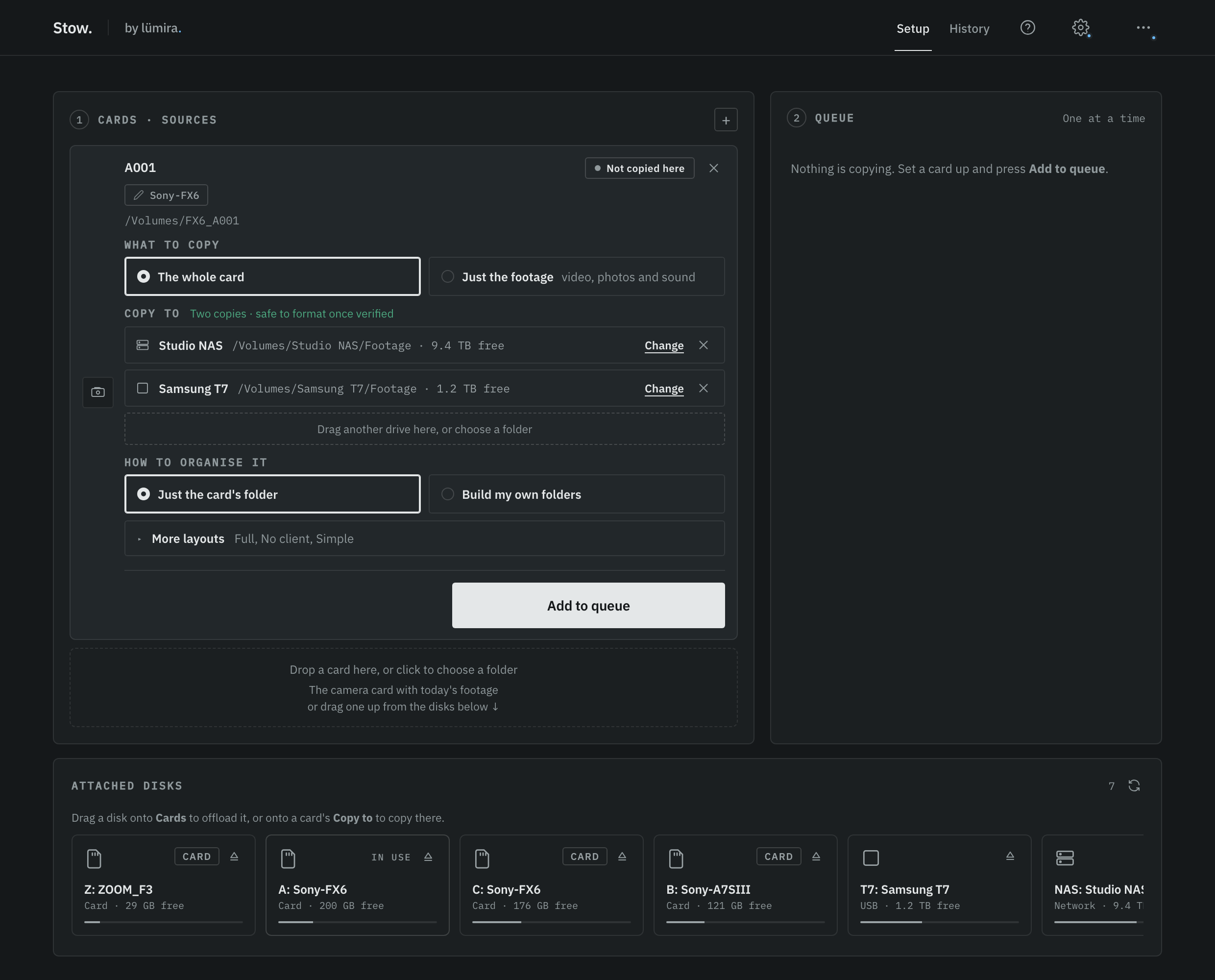
Plug in the card and drag it from the disk list onto Cards. Stow reads the camera and card details for you, and you can rename anything before it copies. Running two identical bodies on one job? Give each card its own name, like A001 and B001, or build folders with a Name folder such as A-Cam.
Choose the folders
Keep it to the card's own folder, or build your own from Date, Client, Shoot name and Camera, and save that as a layout. The footage then files itself the same way every time.
Choose the drives
Drag two or more drives onto the card's Copy to, or pick folders. Each card keeps its own list, and the next card starts with the same one. The disk list shows how much room is left on each drive. Two separate drives is the point: it is what makes a card safe to format.
Add to queue, start, walk away
Add the card to the queue. Line up the rest, then press Start copying. Stow copies each card to every drive at once, checks each copy, and moves to the next card. It only ever reads the card; it never writes to it.
What the result is telling you
As each card finishes, it gets one of three verdicts in the queue. Click the card to open its report. They are colour-coded, and the colour is a verdict, never decoration.
Green: safe to format
Safe to format
Every file was verified byte for byte on two independent drives. Because there are two proven copies on two separate drives, a single drive failing cannot lose the footage. The card can be formatted in the camera.
Green is the only result that clears a card without a second thought. It needs three things at once: at least two copies, on two genuinely separate drives, each read back off the physical media. Anything short of all three holds the result at amber, because each missing piece is a way the footage could still be lost.
Amber: one verified copy
One verified copy
The footage copied and verified on one drive, so you have a good copy. It is just not yet on a second, independent drive, so this is your only one. Formatting the card is your call.
Amber is not an error. It means the copy that exists is genuinely good and proven; the only thing missing is a second one for safety. You will see amber when you offloaded to a single destination, or when a second destination was unavailable or too full, or when both copies landed on the same physical drive.
What you do with amber is a judgement, and Stow leaves it to you. If you trust that one copy and need the card back to keep filming, that is a legitimate call. If you can, add a second drive and run again, and amber becomes green. The one thing worth doing is pausing for a second before you format, because a single copy is a single point of failure, and drives do fail. There is more on why in two copies, two drives, then format.
Red: not verified, and how to fix it
Not verified
The files copied, but when Stow read them back off the drive they did not match the card. So a copy exists, but Stow cannot promise it is a true copy, and it will not pretend otherwise. Do not format the card yet.
This is the result that worries people, so it is worth understanding properly, because red is Stow doing exactly what you installed it to do: catching a copy that a normal drag-and-drop would have called finished. It is uncommon in normal use. When it does happen, it is almost always a hardware problem in the chain, not a problem with your footage, and it is far better to find that now than in the edit.
What red is actually telling you
Stow can usually tell you more than "it failed". When it reads a copy back, it can see the shape of the failure, and it says which files and which drive were involved. You will see one of these:
The count matters too. One file failing among hundreds points at a single bad spot or a momentary glitch. Every file failing points at the link between the card and the drive, or the drive itself.
How to resolve it, step by step
Do not format the card
Red means there is no copy you can yet trust. The card is still your only good source, so keep it until you have a verified copy. Stow never touches the card, so it is safe where it is.
Run the offload again
Most red results are a one-off. A reseat of the card, a fresh run, and it usually copies clean the second time. This alone clears the majority of cases.
If it repeats, change the connection
A failure that comes back, especially on the same file or across every file, is telling you the path is the problem. Swap the card reader, try a different cable, and plug straight into the machine rather than through a hub. Cheap readers and tired cables are the most common culprit.
Then try a different drive
If it still fails after changing the connection, point Stow at a different destination drive. A drive that repeatedly cannot take or read back a clean copy is failing, and this is exactly the warning you want before you trust it with footage.
Read what Stow named
Stow tells you which files failed. If it is always the same one file, copy that clip on its own to check the card itself is readable. If it is all of them, the footage is fine and the fault is the hardware around it.
The short version: red is rare, and it is on your side. A copy exists but could not be proven, so keep the card, run it again, and if it persists change the reader or cable first and the drive second. You are being warned about failing kit before it costs you footage, not after.
When a drive is too full
If a destination does not have room for the card, Stow does not stop the whole job. It skips that drive, tells you it skipped it and why, and copies to whatever destinations do have room. You still get the copies that fit. If that leaves you with a single copy, the result is amber, so you always know where you stand. The disk list shows the free space on each drive up front, so you can usually see a tight fit before you start and swap in a bigger drive.
Two copies on one drive
Two copies are only real protection if they are on two separate drives. If you point both destinations at the same physical drive, perhaps two folders or two partitions on one disk, that is one point of failure wearing two hats: if that disk dies, both copies go with it. Stow notices this, tells you, and holds the result at amber rather than calling it safe to format. For a true green, use at least two drives that can fail independently, such as a NAS and a separate backup SSD.
The report you can keep
Every run writes a one-page report into the job folder on each destination, called an offload report. It records the verdict, each card and how many verified copies it reached, the destinations used, and a plain statement of what was verified. It opens in any browser, prints to PDF, and works offline forever.
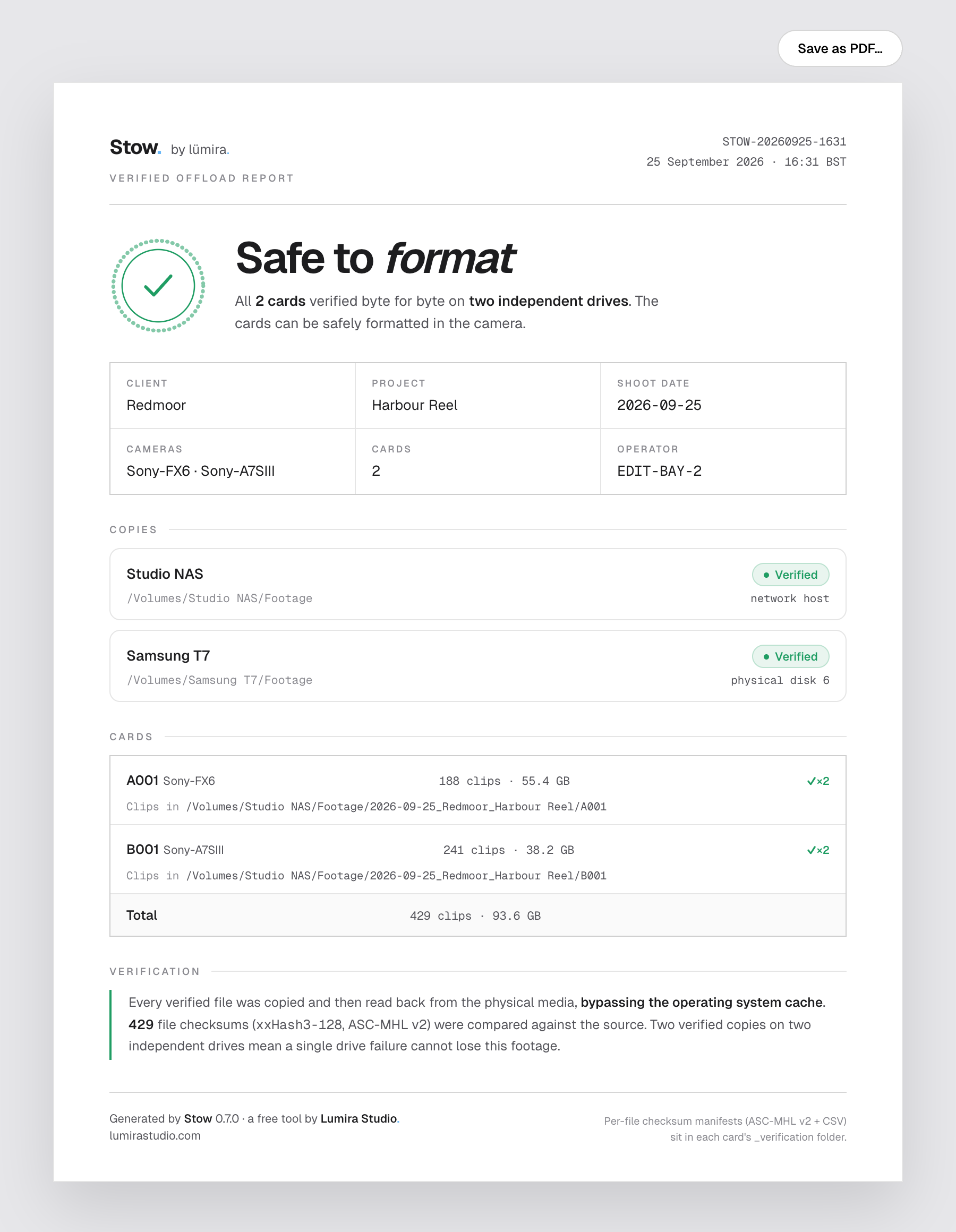
Each run gets its own dated report, so offloading a second card into the same job later never overwrites the first. Alongside each card sits a checksum manifest and a plain checksums.csv, which are the machine-readable proof: months later, Stow can re-read the drive against them and tell you if anything has changed.
Re-checking an old archive
Verification is not only for the day of the shoot. Drives degrade quietly over time, and a file that was perfect a year ago can rot on the disk. Re-check a backup, in Stow's ··· menu, points at any folder it once offloaded and re-reads every file against the manifest, naming anything that has become corrupt or gone missing. It is read-only, so it can never harm the archive, and it turns "I hope those drives are still good" into a plain answer.
Good habits on set
- Two copies, two drives, then format. A single backup is a single point of failure. Green is the goal for a reason.
- Verified before formatted, always. Never clear a card on a progress bar alone. Clear it on a verdict.
- Keep the reports. They are your proof the footage was delivered intact, and they cost nothing to keep.
- Treat a red result as useful news. It is cheaper to learn a reader or drive is failing today than on delivery day.
- Plan the shoot as well as the offload. Miracue, from the same studio, has a free call sheet template and a free shot list template, so the cards that come back hold the shots you needed.
Stow is free, for macOS and Windows
Copy the card, verify it, format it when Stow says it is safe. No account, a few MB.
Get Stow