On a shoot day the next card usually goes in while the last one is still copying. In Stow 0.7.0, setting up cards and watching them copy happen on one screen.
Set up on the left, copying on the right
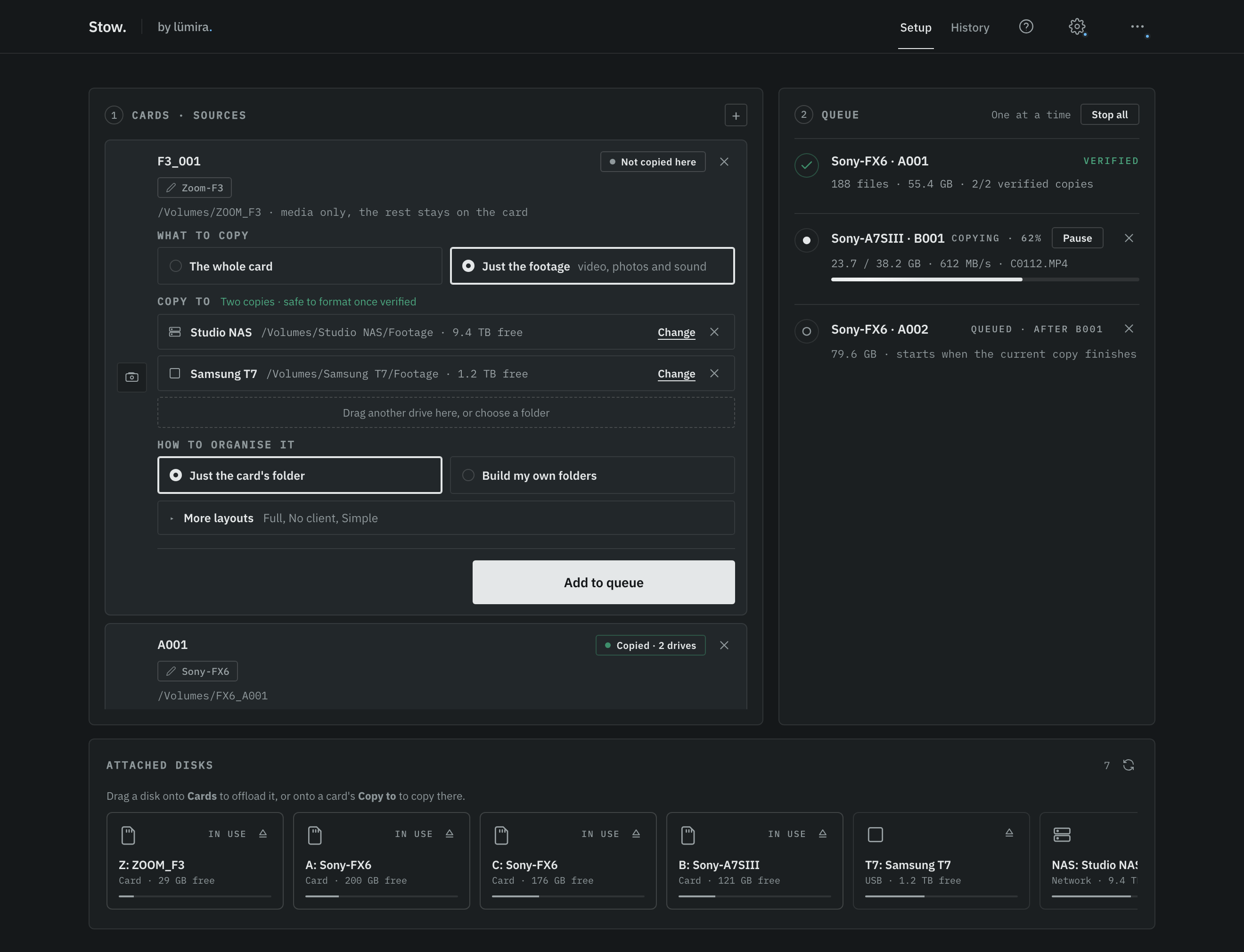
The cards you are setting up sit on the left and the queue sits on the right. Starting a copy leaves everything where it is, so you can get the next card ready while the last one copies beside it. The window opens at full height, with the attached disks docked along the bottom.
Drag each disk where it goes
Everything plugged in appears in one list along the bottom. Drag a disk onto Cards to copy from it, or onto a card's Copy to to copy onto it. There is no guessing which disk is a card and which is a drive, and a disk can only ever be one of the two.
Queue them up, press Start once
Set up as many cards as you like. Press Add to queue on each, then Start copying once when you are ready. A card added during a run joins the line. Pause a copying card to give another card the drives; the queue waits until you resume. Take any card out with its ×: a card taken out mid-copy goes back to Cards so you can change it, and when you add it again only what is missing is copied. Stop all ends the whole run. New installs copy one card at a time, so each card gets the drives to itself; All at once is under Settings > Advanced, and anyone who already had it keeps it.
Every card carries its own setup
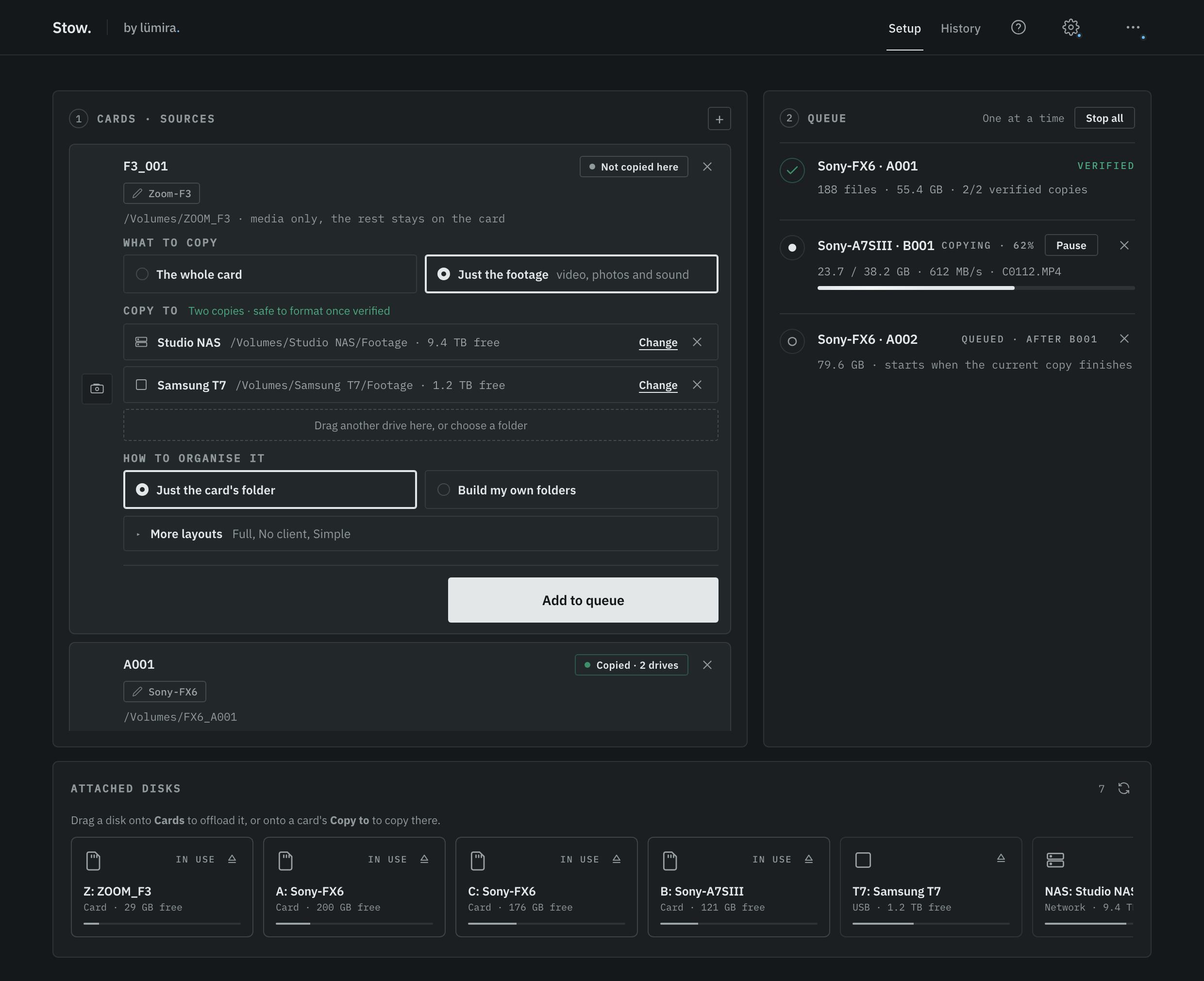
Each card keeps its own drives, its own folders, and the whole card or just the footage. In one run the FX6 card can go to the NAS and the sound card to an SSD. A new card starts from the last card's choices, so a second card from the same shoot needs no typing.
Folders are simpler to set up. Build my own folders stacks Date, Client, Shoot name, Camera and your own names above the card's folder. Drag them into order and save the result as a layout for next time. The card shows where the footage will land before anything copies.
Naming cameras
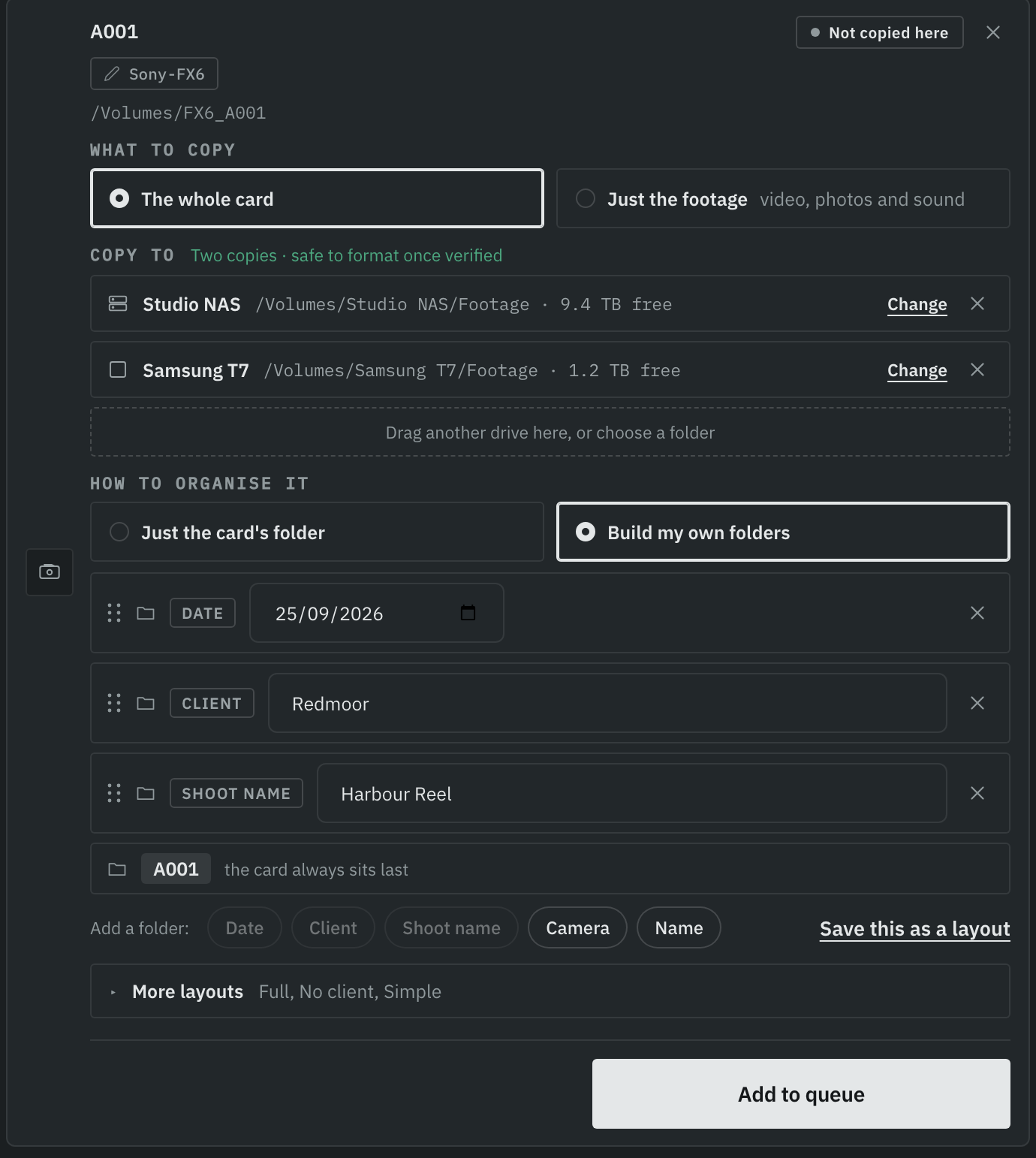
Stow names the camera from its files where it can, and the name sits on the card you are setting up, beside its drives and folders. Click it to rename that camera everywhere. Two identical cameras on one shoot? Give each card its own name, like A001 and B001.
Reports from the queue, and History
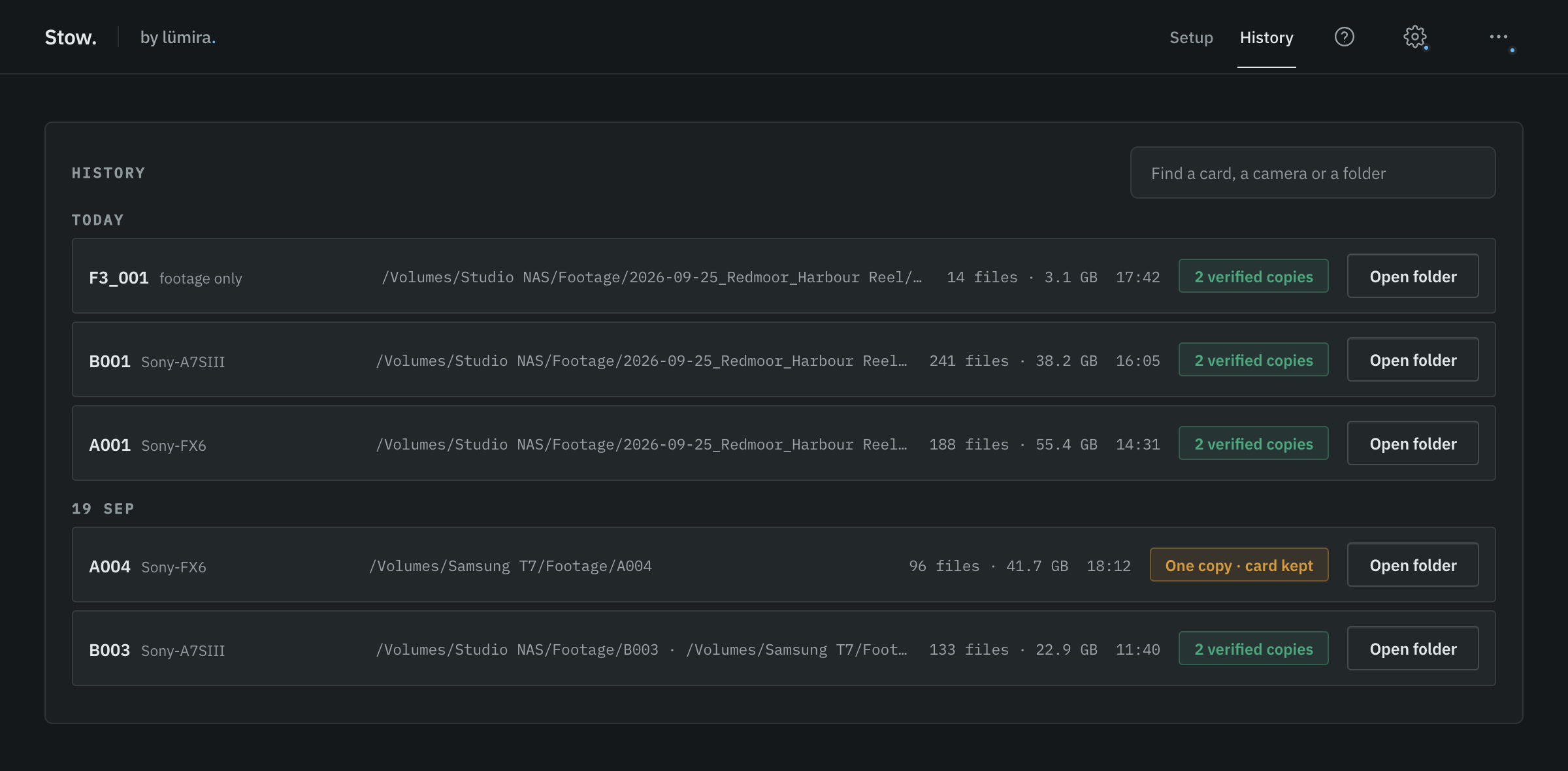
When a card finishes, its report opens from the queue while the others keep copying. A new History screen lists every card the computer has offloaded, with its verdict, where the footage went and a search, so you can check days later without plugging the drives back in. History stays on the computer.
Smaller things
Stow now checks each file's time on the card as well as its size, so anything the camera has changed since the last copy (a Sony MEDIAPRO.XML, an AVCHD INDEX.BDM) is copied again, and Stow says so. A folder name you type is always one folder, on Mac and Windows alike. If a drive is unplugged or fills up at the end of a run, the other drives still get their verdict. Stow says safe to format throughout, the words your camera uses.
The job itself has not changed.
Stow reads the card once, writes to two or more drives, reads every file back and gives each card one answer: safe to format, or not yet. A paused or stopped card is never called safe.
"It's a simpler interface. Most used features are now on one single interface: setting up your cards, and seeing how the copies are going. Inspired by feedback from many of our users."
Luke Lv, founder of Lumira Studio
Get it: Stow 0.7.0 is free for macOS (Apple Silicon) and Windows. If you already have Stow, it offers the update inside the app. The changelog lists every change.
Stow 0.7.0 is free, like every version
Verified offloading with a plain verdict: safe to format, or not yet. macOS and Windows.
Get Stow